Using External Files in Blender
· By Richard
Blender can work with many different types of files. You can import images to use as textures, you can import 3D meshes, 3D volumes, simulation caches, etc.
Here's all the different types of files that you can import or link:
- Image files
- Single Images
- Image sequences
- Videos
- IES Textures (for lights)
- Fonts
- Volumes (.abc)
- Mesh caches
- Single Mesh
- Mesh Sequence
- Physics caches (simulations)
- Geometry nodes cache
- Various 3D data (.stl, .obj, etc.)
- Other .blend files
- Python scripts
(if I'm missing a particular type of file, let me know)
Some files when imported, immediately become some kind of data in the .blend file that you can save. Think about .stl or .obj files. After you import them, you don't need the original file anymore.
Other files are only imported by storing their file path in Blender as a reference. These files become depencencies of your .blend file. Your .blend file depends on that file being there. If you delete the file, or move it, it stops working.
When dependencies break like this, Blender will not crash. Instead it usually fails without warning. Whatever you were doing with the file just stops working.
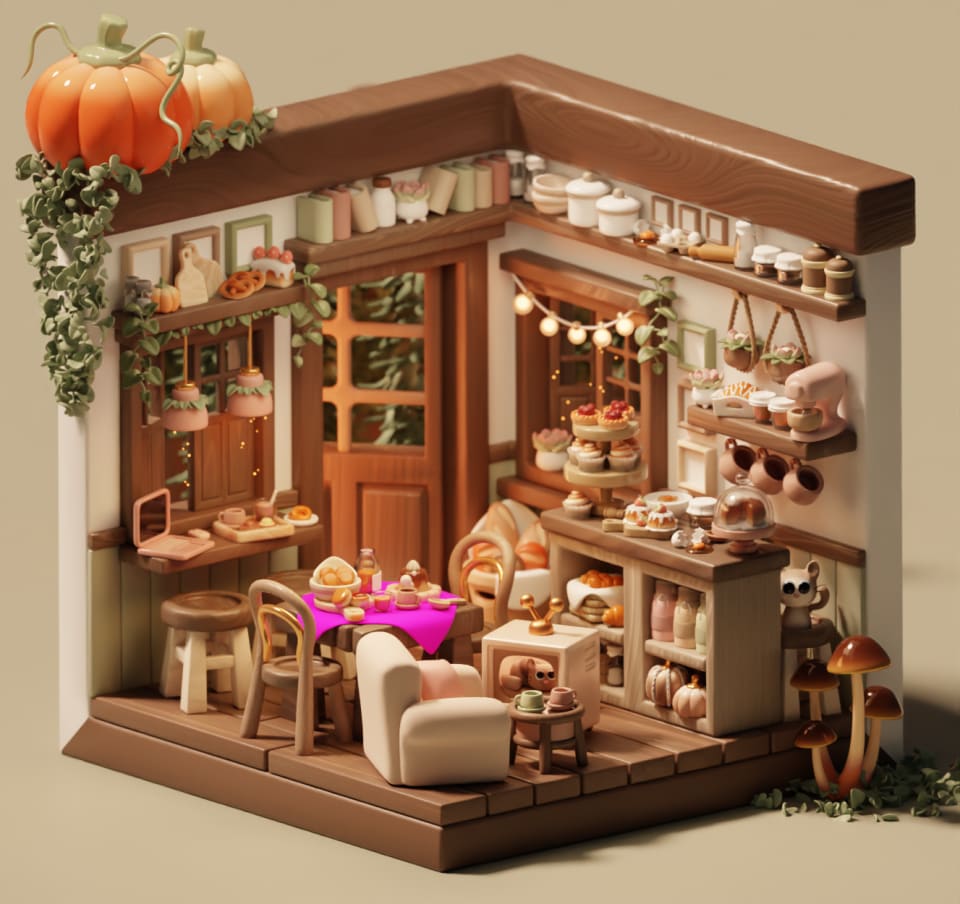
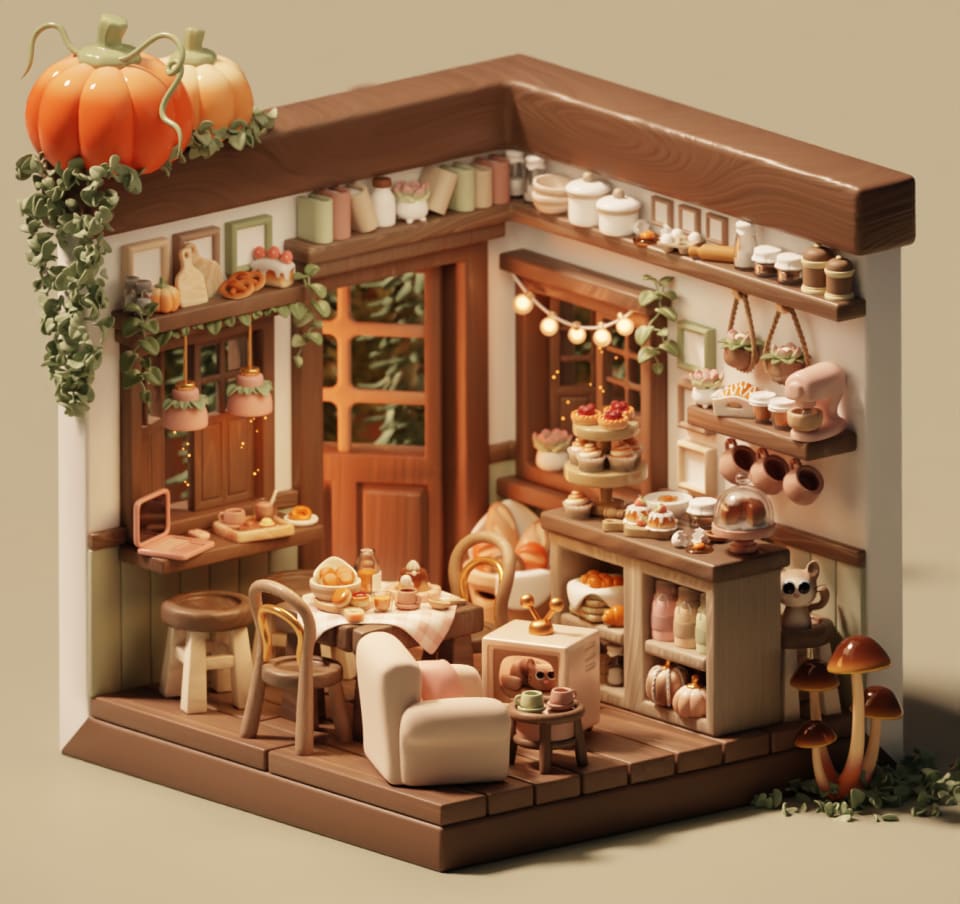
In the case of textures, it does have some kind of warning. It will render the typical pink color we all enjoy:
Sharing .blend files
So what if you have a .blend file with dependencies, and want to share it with someone else?
If you send them a copy of your .blend file, you have a problem. Because when they open the .blend file, the external file won't be there, and it breaks.
There are a few different ways to handle this.
Never move or copy your .blend files. If you want to share the .blend file with someone, just let them use the same computer. This is kind of a dumb solution, but it's the simplest and pretty fool proof.
Pack the files into Blender. This is another very nice and simple option. Some (not all!) of the external file types can be packed right into the .blend file.
When you do this, Blender doesn't depend on the external file anymore. You could even delete it from your computer and it will still work. Now, your .blend file will be a bit bigger, because the data of the external file is now inside of it along with the default cube all other stuff. If you have huge external files and try to pack multiple GBs this might become tedious.
But sharing is simple now. If you want to share your project with someone, all you have to give them is the .blend file, and it just works.
Which files can be packed?
- Single Image textures (image sequences and videos do not get packed)
- IES Textures (for lights)
TODO: Test
- Fonts
No?
- Volumes (.abc)
?
- Mesh caches
Turn them into actual meshes
- Single Mesh
- Mesh Sequence
- Physics caches (simulations)
Some of them?
- Geometry nodes cache
Yes
- Various 3D data (.stl, .obj, etc.)
Yes
- Other .blend files
- Python scripts
TODO: finish this list
- Make sure both computers have the same files on them. If Blender depends on certain files, make sure you not only share the .blend file, but also the external files. Make sure Blender knows where to find those files. This leads us to handling file paths in Blender.
File Paths
If you don't know what I mean with "file path", it's pretty much the location of a file on your computer. If you want to point the mailman to your house, you give them your address. If you want to point Blender to your texture file, you give it the file path.
A file path consists of the Location of the file and the Name of the file. The location is a folder/directory where the file is located. But within a directory you can have many files, so you still need something extra: the name of the file.
This all sounds like super basic stuff. But it's good to have a common ground for talking about how to tell Blender where to find your files.
Ok, so a file path is pretty much the information you give Blender to find your file. There are two "flavours" of file paths in Blender:
Absolute File Paths
Relative File Paths
This is what dictionaries say about absolute vs. relative:
Absolute: * Independent: It's not dependent on anything else for its existence or meaning.
Relative: * Dependent: It relies on or is compared to something else for its meaning or existence.
Absolute file paths don't depend on anything, relative file paths depend on something. On what? On the file path of the .blend file itself. We'll get to this.
So an absolute file path is a file path that points to a file. You don't need to know anything else, you can just find that file if you have the file path.
A relative file path does not have enough information to find the file. You also need to know "relative to what?". So you need to know the filepath of the .blend file too, and then you can find the file.
So absolute file paths are like a full address, including the country. This gives you everything you need to know to find the place.
A relative file path leaves some information out. Going back to the address analogy: If you know the country, you can only share the city/street/number. If you know which city you're in, a street/number is enough information.
Here are some examples of absolute file paths pointing to a texture file banana.png.
On Windows:
C:\Users\suzanne\Documents\Blender\monkey-project\textures\banana.png
On Mac:
/Users/suzanne/Documents/Blender/monkey-project/textures/banana.png
On Linux:
/home/suzanne/Documents/Blender/monkey-project/textures/banana.png
Here are some examples of relative file paths.
On Windows:
//textures\banana.png
On Mac:
//textures/banana.png
On Linux (same as Mac):
//textures/banana.png
See that weird double slash // at the beginning? We'll talk about this later.
So if I would hand you a laptop and say "go check out this file at
//textures/banana.png", you would have no idea where to look. But if I say "checkout
this badass banana texture at
/home/suzanne/Documents/Blender/monkey-project/textures/banana.png", you would be
able to open it.
So how does Blender know where to look for a Relative file path? That's where the double slash comes in. Blender replaces this double slash with the location (directory) of its own .blend file.
So if the .blend file is located at:
/home/suzanne/Documents/Blender/monkey-project/animation.blend, it will put the
Location, (not the .blend file name) at the beginning //. So Blender will then look
for the file at: /home/suzanne/Documents/Blender/monkey-project/ the location of the
.blend file + textures/banana.png the relative file path.
So yeah, relative paths are a bit more complicated. Absolute paths a bit more straightforward.
Why would you ever want to use Relative File Paths?
So why bother with relative paths then? Because they solve an important problem:
Absolute file paths can be too "brittle" and tend to only work well on one computer. Relative file paths are more suited for moving projects around. (on the same computer and between computers)
Even if you stay on the same computer, here is how absolute file paths can break:
Imagine you rename the project directory from monkey-project to suzanne-project.
Your absolute file path breaks.
The path /home/suzanne/Documents/Blender/monkey-project/textures/banana.png should now
be changed to /home/suzanne/Documents/Blender/suzanne-project/textures/banana.png to
fix it.
So what happens to the relative path? //textures/banana.png is still the same. But the
meaning of the // part has now automatically updated. After renaming the project
folder, the file path of the .blend file has now become
/home/suzanne/Documents/Blender/suzanne-project/animation.blend.
The relative file path //textures/banana.png doesn't have to change. It still works.
As long as the .blend file is located in the project directory, this relative path
works. Regardless of the name or location of that project directory. Pretty useful.
Let's say you need to share your project with someone else on a different computer. All you have to do now, is keep your external files in the project folder, and use relative paths. Then you can share your entire project folder without worrying about pink bananas🍌
A simple way to share your project folder without messing up the structure, is by .zipping up the entire folder. You can leave the content structure unchanged, because relative paths rely on this. On any computer you can unzip it, open the .blend file, and Blender knows where to find the external files.
If you need to do a lot more back and forth with other artists, zipping a folder back and forth is way too tedious. You can use a network drive or a cloud storage service. As long as the project folder structure is consistent between computers, the relative paths will work.
Want to render your project with Blendergrid? Putting the project into a .zip file also works great. You can upload the .zip file and as long as the paths are relative, everything will work.
Fixing broken file paths in Blender
Here's some tips about managing file paths in Blender.
If you have some paths set to be absolute paths, and you've been sold by my explanation about why relative paths are better, here's how you convert them:
In Blender, go to: File > External Data > Make Paths Relative
This will convert any absolute paths to relative paths, using the magical double slash
// trick.
The opposite is also possible: File > External Data > Make Paths Absolute
Sometimes, in Blender, you have relative paths, but they are still brittle and break
when you share your project with someone else. This can happen if the relative path
starts with the // as usual, but then goes "up" a bunch of directory levels, into
directories far outside your original project directory.
We haven't covered this yet, but there is another special character sequence in file
paths you need to know about. A double period and slash ../ means "go up one directory
level".
You might need this if your .blend file is in a nested subdirectory of your main project directory.
Let's say you have a project directory at:
/home/suzanne/Documents/Blender/monkey-project/.
But you want to save your .blend file in a subdirectory called 3D.
Then the .blend file will be at:
/home/suzanne/Documents/Blender/monkey-project/3D/animation.blend
Your textures are still at /home/suzanne/Documents/Blender/monkey-project/textures/.
So the banana texture is located at
/home/suzanne/Documents/Blender/monkey-project/textures/banana.png.
How do you make a relative path from the .blend file to the banana texture?
The double slash // trick is not enough, because that only allows us to get files in
3D and any subdirectories from there.
But instead of moving the textures/ directory into 3D/. We can use the ../ in our
relative path.
Step 1 - Start at the location of the .blend file: // (we're inside the 3D/
directory) Step 2 - Go up one directory level: ../ (now we're in the monkey-project/
directory) Step 3 - Go into our textures directory: textures/ Step 4 - Point to the
banana texture file: banana.png
Final path: //../textures/banana.png
So this double period pattern is super useful. But sometimes Blender adds too many of them and they are redundant.
Look at this file path: //../../monkey-project/textures/banana.png
This path also works, it's starting at // which is inside the 3D directory. Then we
go up two levels ../../ so now we're in the Blender directory. Then we go into the
monkey-project/textures/ directory where we can find our banana texture banana.png.
But this path is longer, and more brittle. What if we rename the project folder to
ape-project? This path no longer works, but the short path //../textures/banana.png
still points to the right file.
There is a way to fix this quickly: First make all your paths absolute with: File >
External Data > Make Paths Absolute
This turns our //../../monkey-project/textures/banana.png path to
/home/suzanne/Documents/Blender/monkey-project/textures/banana.png
Now convert it back to a relative path with: File > External Data > Make Paths
Relative
This turns it back to: //../textures/banana.png
You can also manually fix the path. For images, the easiest place to do this in Blender
is in the Image Editor window. Find the image you want to fix, open the right hand
panel with N and under Image you can see the File Path and edit it.
[image of this]
I hope this was helpful. As Blender evolves I will do my best to keep this article up to date and make it a useful resource for Blender artists juggling external files!